How to get Shopify product pages into Google AI Overviews
 By Daniela Ricaud, founder of Pretty Citable
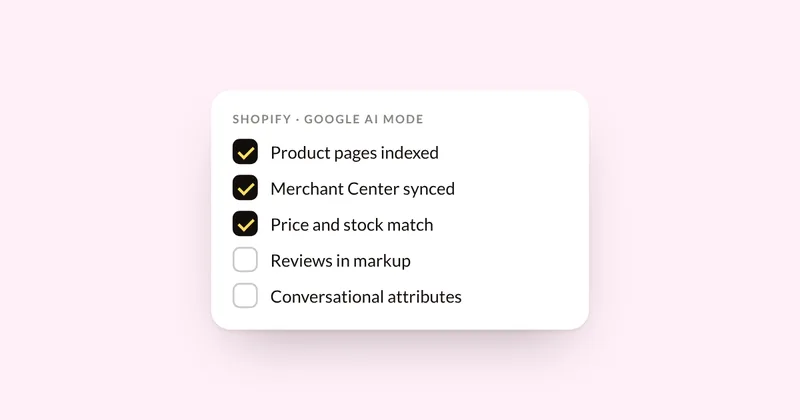
Google says there are no extra requirements to appear in AI Overviews or AI Mode: a page has to be indexed and eligible to show a snippet in regular Search. For products, the lever Google names is Merchant Center. On Shopify, that means five checks: Google can index your product pages, your catalog syncs to Merchant Center through the Google & YouTube channel, your product data is complete and matches the page, your reviews are marked up, and your listings carry conversational attributes. Nobody can guarantee a placement, Google included.
What Google says it takes
Google's guidance for site owners is short. There are no additional requirements and no special optimizations for AI Overviews or AI Mode. To appear as a supporting link, a page has to be indexed and eligible to be shown in Google Search with a snippet. Google also says there's no special structured data to add for these features.
For products, there's a second path. Google says AI Mode shopping is powered by its Shopping Graph, Google's database of more than 50 billion product listings. Google's AI optimization guide says Merchant Center feeds can help products show up in AI responses, and that those responses can include product listings. So a Shopify store needs two things working: product pages Google can index, and a clean product feed in Merchant Center.
Step 1: Make sure Google can index your product pages
- Remove the store password. Search engines can't read a password-protected store, sitemap included.
- Submit your sitemap. Shopify creates it automatically at yourdomain.com/sitemap.xml, covering products, collections, pages and blog posts. Add it in Google Search Console under Sitemaps.
- Check robots.txt. Shopify's default file works for most stores. If your theme has a robots.txt.liquid template, it replaces the default, so open yourdomain.com/robots.txt and confirm /products/ isn't blocked.
- Check the canonical tag. Shopify's own themes point each product to its main /products/ URL automatically. Third-party themes may not. View a product page's source and find the canonical link.
- Test one product. Paste a product URL into Search Console's URL Inspection tool. It tells you whether the page is indexed and whether anything blocks it, such as a noindex or nosnippet tag added by an app.
Step 2: Sync your catalog to Merchant Center
- In Shopify, add the Google & YouTube sales channel and connect a Merchant Center account. You'll need a verified domain and phone verification.
- Products available to your online store sync automatically. The first sync can take up to 24 hours.
- Open Merchant Center and fix any products marked as disapproved or limited. A product with an error can't show in any Google shopping surface.
Approved products become eligible for free listings across Google, including Search, the Shopping tab, Images and Lens. Google states that eligible products aren't guaranteed to show.
Step 3: Make your product data complete and consistent
- Availability and price must match. The feed, the product page and checkout should all show the same price and stock status. Mark sold-out items as out of stock. Don't use out of stock to hide a product you'd rather not show.
- Fill in the identifiers. Brand, GTIN (barcode) and a full description help Google match your product to the right listing.
- Add shipping and return policies. Set them in Merchant Center or Search Console. Google uses the Search Console version when both exist.
- Check your theme's product markup. Shopify's structured_data filter outputs Product markup (ProductGroup for products with variants) with brand, description, images, price, currency and availability. Shopify's Dawn theme has used it since 2024. Run a product page through Google's Rich Results Test to confirm your theme outputs it.
Step 4: Add your reviews to the markup
Shopify's built-in product markup doesn't include ratings. A Shopify staff member confirmed this on Shopify's developer forum in August 2025. To get ratings into your markup, use a reviews app that outputs aggregateRating, or add custom JSON-LD. The rating in the markup must match the reviews shoppers can see on the page.
Google says structured data isn't required for its AI features. Ratings still make your product eligible for review stars in regular results, and real reviews on the page give shoppers and AI the same proof.
Step 5: Add conversational attributes in Merchant Center
Google added optional product attributes in 2026 to help shoppers get product answers on AI-driven surfaces like AI Mode. They include:
- question_and_answer: common shopper questions and your answers.
- document_link: manuals, ingredient lists or size guides.
- related_product: products that go with this one.
- variant_option and item_group_title: clearer names for variants and product families.
Google recommends adding them through a supplemental data source in Merchant Center, so your main Shopify sync stays untouched. Start with your best sellers and the questions customers already email you about.
Step 6: Write product pages that answer shopper questions
Google treats optimizing for its AI features as ordinary SEO, and its guide lists rewriting or splitting content just for AI as tactics to skip. What helps is a product page that answers the questions a shopper would ask: who it's for, what's in it, sizes and materials, how it compares with similar products, and shipping and returns. A short FAQ on the page covers the rest. Keep any markup in line with the text shoppers can see.
Shopify's own AI channels
Shopify's Agentic Storefronts send your products to AI shopping channels through Shopify Catalog. Shopify's Help Center lists Google AI Mode and Gemini, ChatGPT, Microsoft Copilot and Meta, and says the feature is active by default for eligible stores. You manage it under Sales channels, then Agentic. Shopify's channel list has changed through 2026, so check the current list in your admin.
The store facts AI agents read about your policies and brand now live in the knowledge base inside Agentic Storefronts. The older Knowledge Base app can no longer be installed and shuts down on January 15, 2027.
How to see whether it's working
- Merchant Center AI performance insights show your share of voice in AI Mode and AI Overviews for English shopping questions, for accounts in the US, Canada, Australia, New Zealand and India.
- Search Console's Generative AI report shows how often your pages appear in AI Overviews and AI Mode. Here's what it shows and what it hides.
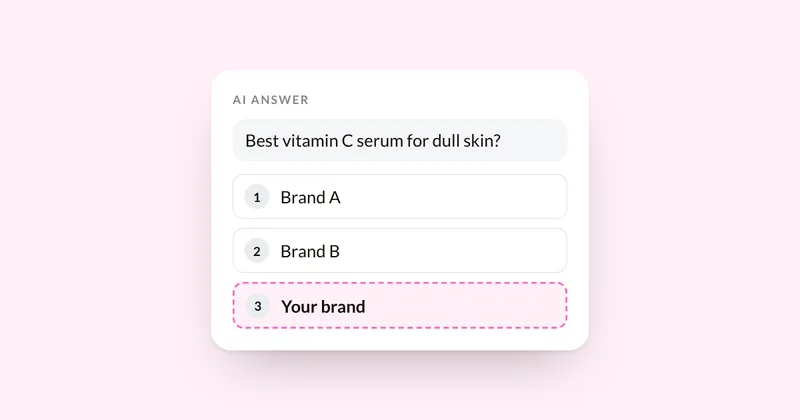
- Test it yourself. Ask Google the questions your buyers ask and note which brands appear. Here's a simple way to test and record it.
Where the audit fits
Most of this is a checklist you can work through yourself in an afternoon. The AI Visibility Audit ($500) runs these checks on your store, tests your buyers' questions across the AI engines, and ranks the fixes by what's costing you recommendations today.
Sources
- Google Search Central: AI features and your website
- Google Search Central: Google's guide to optimizing for generative AI features on Google Search, updated Jul 10, 2026
- Google Blog: AI Mode shopping and the Shopping Graph, May 20, 2025
- Google Search Central: Merchant listing structured data
- Google Search Central: Merchant return policy structured data
- Merchant Center Help: Show your products for free on Google
- Merchant Center Help: How to use conversational attributes
- Merchant Center Help: About AI performance insights
- Merchant Center Help: availability attribute
- Shopify Help Center: Set up the Google & YouTube channel
- Shopify Help Center: Finding and submitting your sitemap
- Shopify.dev: Customize robots.txt
- Shopify.dev: structured_data Liquid filter
- Shopify Developer Community: structured data should add support for rating
- Shopify Blog: How to set canonical URLs in Shopify, Aug 14, 2025
- Shopify Help Center: Agentic storefronts
- Shopify Help Center: Knowledge Base app
See where your brand stands
Run three buyer questions yourself in 60 seconds, or get the full AI Visibility Audit: 30 questions on four engines, a competitor map and a ranked fix list in 5 business days.